Freeze that control

Clarion 7.1 introduces two new functions; FREEZE and UNFREEZE.  FREEZE/UNFREEZE are used in tandem to suppress redrawing while you adjust multiple attributes of a control. For example, you would typically call the FREEZE method, then set the Size, Location, Text, or Color properties of the control, and then call the  UNFREEZE method to enable the changes to take effect.  This can increase the performance of applications with many controls, and eliminate screen flicker when dynamically creating controls or adjusting their properties.

The syntax is:

FREEZE (SIGNED feq),SIGNED

FREEZE suspends redrawing of the control which is identified by the feq parameter.
The return value must be passed to a paired UNFREEZE.

UNFREEZE (SIGNED feq, SIGNED state)

This function resumes redrawing of the control previously suspended by FREEZE.
The second parameter is a value returned by last FREEZE for that control which has not been closed
by paired UNFREEZE.

Calls to FREEZE can be nested. Every such call must have its paired UNFREEZE,
for example:

x1# = FREEZE (feq)
...
x2# = FREEZE (feq)
...
UNFREEZE (feq, x2#)
...
UNFREEZE (feq, x1#)

FREEZE and UNFREEZE must be properly paired: if there isn’t a paired call to UNFREEZE for an executed FREEZE, the control cannot be redrawn. The UNFREEZE function forces redrawing of the control.

(note: FREEZE/UNFREEZE cannot be used for menu items)
Precompile and Publish ASP.Net web apps

We’ve added some new functionality to the IDE in support for precompling and publishing a web app.  As you know by default, ASP.NET dynamically parses and compiles any ASPX page when the first request is made for the page. The .Net runtime caches the compilation outputs and does not need to recompile again unless someone edits a file. This behavior brings us a good amount of flexibility, including the flexibility to change code and markup. and instantly see the changes reflected in the next browser request.  ASP.NET 2.0 introduced the option of precompiling your website. Precompling offers the following advantages :

  • You do not need to deploy the source code to the server. The website is precompiled into binaries, which are then deployed to the server.
  • It allows you to identify any bugs during compilation rather then opening each page
  • The deployment process is a bit easier as all your aspx pages, user controls etc. are compiled into binaries.There are a few different ways you can precompile a website.
Precompiling websites at the command-line

When you have an ASP.Net project open the IDE command “Build” only validates the project and puts the assemblies into the ASP.NET temporary folder.

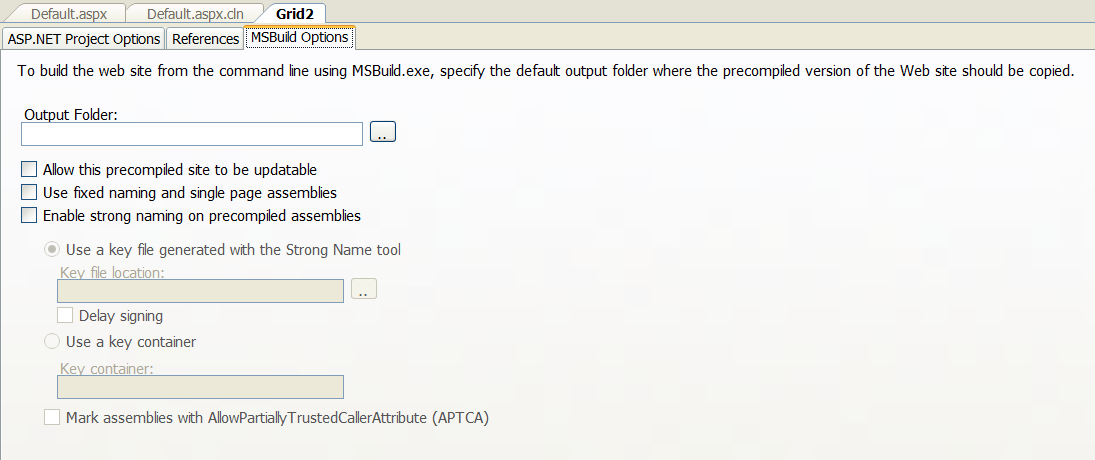
The values you enter on the new MSBuild tab of the Propect Properties are valid if you want to build the project from the command line. So at a command prompt you use this syntax:

MSBuild <projectfile>.aspxproj /target:Msbuild /property:ClaNetBinPath=<Clarion.Net BIN folder>

aspprocomp

Precompile and publish websites using the Clarion IDE

To precompile and publish your website using the IDE follow these steps:

1. Open your website project
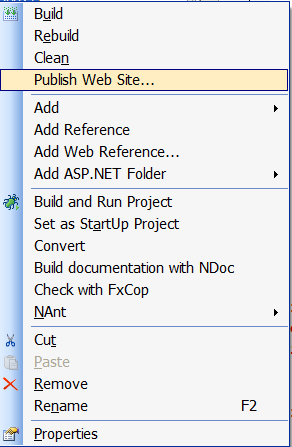
2. In the Solution Explorer right-click on the Project and from the context menu choose “Publish Web Site”

asp1

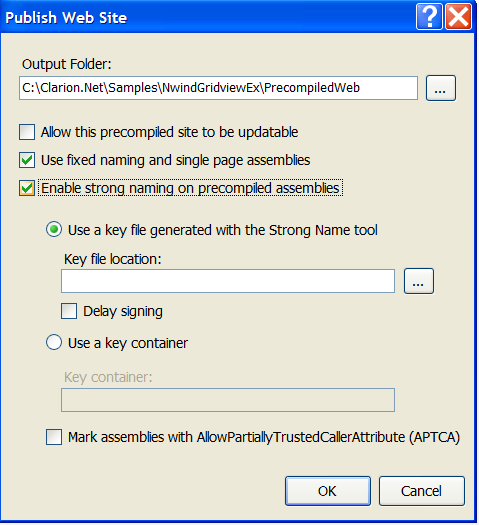
3. You then get a Publish Web Site dialog like shown below where you can specify the path to publish. Clicking on the eplisis(…) lets you choose a folder.

asp2
4. Select your options in the dialog :

a. Allow this precompiled site to be updatable – This option allows you to change the markup and client side functionality of the .aspx pages.
b. Use Fixed Naming And Single Page Assemblies
c. Enable strong naming on precompiled assemblies – specifies that your assemblies are strong named using a key file or container.

5. Click Ok to compile and publish the website. Continue reading Precompile and Publish ASP.Net web apps →

.App Auto-Save and Recovery

We’ve implemented a new feature for 7.1 .that allows for auto-save of an .App and recovery from a crashed system.
The way it works is like this:

  • explicitly saved changes are written to both the in-memory database and to the new recovery file
  • upon saving an .App the recovery file is emptied (truncating it’s size to 0)
  • when an APP is closed the recovery file is deleted
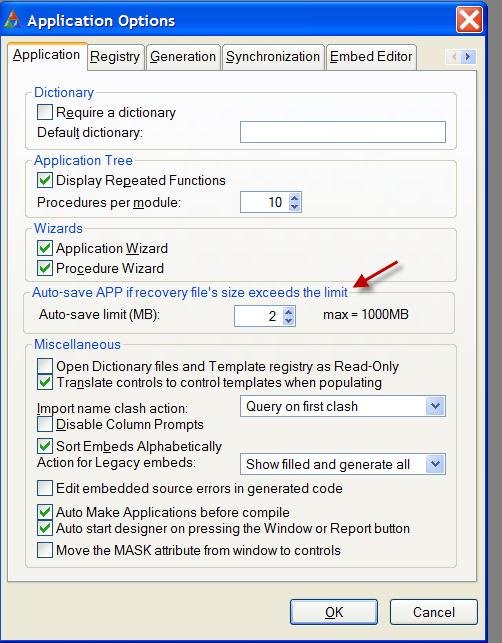
  • if the recovery file’s size exceeds the limit (as set in Application Options), then AppGen auto-saves the APP file to disk
  • if AppGen finds a recovery file when opening an .App, and the recovery file is older then the .App file, and its size is > 0, the user is queried to recover the .App or to open the last saved .App.

Here’s the new application option:
appautosave

In all cases a backup of the .App is made when its first opened (.Bpp extension)

Report Writer for 7.1

During the webinar on ClarionLive covering Report Writer we had some great suggestions for additional features and functionality.  It would be helpful if the Clarion devs who voiced those ideas could open Feature Requests in the PTSS  system so we can properly track them.  If you’d like to vote your support for a particular feature request you can also post a comment right here.

There were some audio problems during the webinar and it seems it caused some confusion during the Q/A session. It seems the most confusion revolved around whether the ability to just print/preview a report from within a Clarion7 or Clarion.Net application would require a license per workstation, this is the same type functionality as we have now using the C70prlbx.dll, and the answer is No, there is no license required to view and print exisitng reports.  We’ll be providing the same type of functionality as in C6/C7 to easily print/preview exising reports (without the full Report Writer) but with greater depth in order to take advantage of new features and functionality.

Managed IP Driver

The current public version of Clarion.Net has support for all of the core Clarion drivers available for Clarion Win32. You can use the drivers for developing desktop and web apps, but they can’t be used on Mobile Devices due to the different CPUs used on those devices.  To accomplish this the runtime uses interop to access the native win32 functions. This works seamlessly and there are some amazing benefits for Clarion developers who can leverage all their database driver knowledge, run .Net and win32 Clarion programs side by side, and much more.

But up until now those native calls into the driver layer meant that on a 64bit OS you needed to run your Clarion# application targeting an x86 CPU. Otherwise the JIT compiler would compile the application as 64bit and when the runtime tried to make a call into the native win32 driver layer it would fail.  Changing the applications target CPU or just running the corflags.exe is simple and takes just a few seconds (the corflags tool allows you to configure the “CorFlags” section of the header of an assembly), but now you have another choice; the managed IP Driver.

The managed IP Driver is exactly what the name implies, its a 100% managed code implementation of our IP Driver. This means a few things;

  1. you can build WinForm applications that access any of the database formats that Clarion supports
  2. you can build WebForm applications that access any of the database formats that Clarion supports
  3. you can build CompactForm applications (Mobile devices) that access any of the database formats that Clarion supports

For item (1) in the list above you might be thinking “but I already can do that”, which is true but now your application can run as a pure managed code 64bit application. You might be thinking the same about item (2), but two things are worth mentioning; anyone who has ever tried to run a web application under IIS that reads/writes non-SQL database files knows the hoops that have to be jumped thru to make IIS security cooperate, and secondly if IIS is running on a 64bit OS, its going to want to run 64bit web applications. Now you can force 64bit IIS to run a web app that requires access to a native 32bit binary, but its not pretty and its not particularly easy. Point number (3) is potentially huge because it means that any Clarion# mobile application now has another data storage option besides SQL and XML. Mobile applications can now use Clarion file I/O syntax and can access any database that Clarion supports. Naturally this access requires a network connected Mobile device.

This is all accomplished with separate versions of the Clarion.Net runtime assemblies. If you set the checkbox shown below your application automatically references these new runtime assemblies:

managedip
The managed IP driver will be supported for both Professional and Enterprise editions.

Manifest support for Windows 7

We’ve just added support for creating the new Windows 7 compatibility sections in the Application Manifest to both the Templates, and the Linker.

appmanifest

With the settings above your manifest is generated with these two new sections:

<compatibility xmlns=”urn:schemas-microsoft-com:compatibility.v1″>
<application>
<!–The ID below indicates application support for Windows Vista –>
<supportedOS Id=”{e2011457-1546-43c5-a5fe-008deee3d3f0}”/>
<!–The ID below indicates application support for Windows 7 –>
<supportedOS Id=”{35138b9a-5d96-4fbd-8e2d-a2440225f93a}”/>
</application>
</compatibility>

The Linker uses the MANIFEST directive and has been extended with the following options:

MANIFEST VISTA WINDOWS7
— The linker adds the default manifest to the executable compatible with records indicating application compatibility with both Windows Vista and Windows7

Note that Windows XP and Windows Vista ignore this manifest compatibility section and it has no impact on them.

Improvements to the PropertyGrid

There has been a lot of talk about the transition from properties presented in modal dialogs (ala C6 and prior versions) and properties presented in the .Net PropertyGrid control.  And a lot of that talk was not too complimentary to the MS PropertyGrid.  There were several different complaints about the control, and perhaps the most frequent complaint was the poor support for keyboard-only navigation and data entry. There were other problems too, like the representation of True/False values, etc.

Clarion 7.1 addresses these issues with a much more keyboard-capable grid control, we are still working on further improvements but here is a very short video (no audio) that gives you a good idea of where its headed.  Just keep an eye on the mouse and you’ll see its not used at all for navigating and editing the grid data.

Clarion 7.1 – New Window Previewer

The C7  Window Designer does a remarkably good job of rendering a window as it will appear at runtime; including rendering controls with manifest styles applied (something the C6 preview could never do).  But Clarion developers have proven to us that for complex windows it just cannot match the runtime presentation.  Enter the new Window Previewer functionality in 7.1 — the new previewer beats the old C6 preview hands down, it does that by compiling the window into a tiny program and executing that program, which means no matter what OS you are running, you’ll see the exact same representation for the window as you would if you had compiled the entire application.  But because this is just a tiny program, it runs instantly (just as fast as in C6)!  It also displays user-defined data within the controls (another bonus over C6).

Here is a quick screen shot of the previewer in action:

windowpreviewer1

Report Writer


This Friday we’re going to demonstrate the new Report Writer on Clarion Live!. Our thanks to John Hickey and Arnold Young for inviting us back!
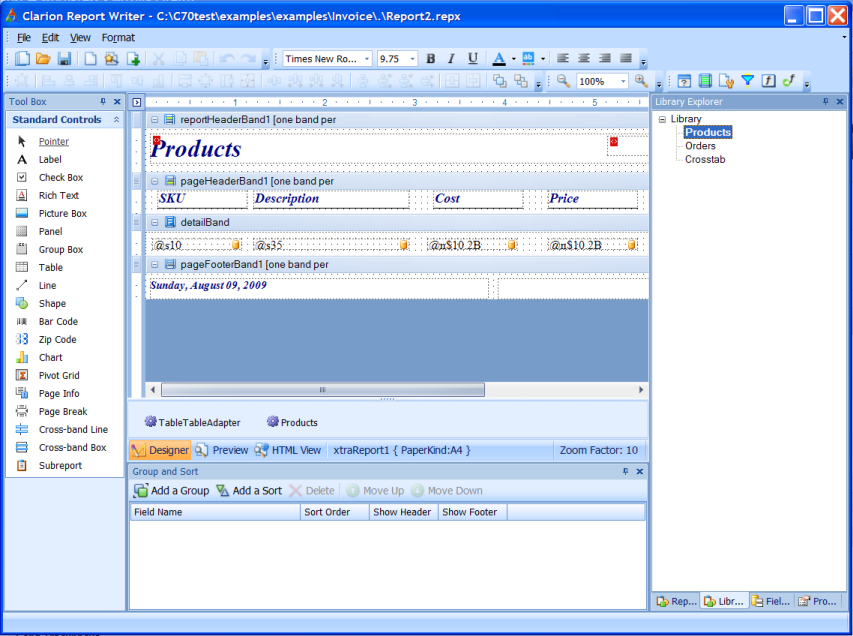
I thought I’d take a few minutes to point out some of the features and give you a feel for the UI.  Here’s a scaled-down screen shot of the main view.

Report Writer - main view
Report Writer – main view

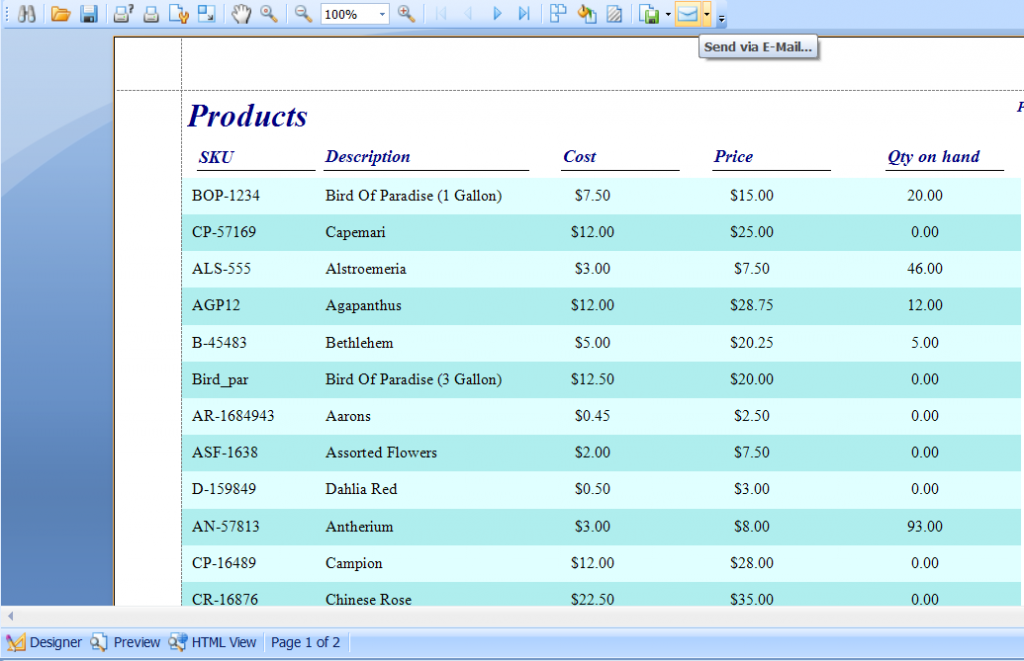
Everything is done from this main view, in this next shot I had just pressed the “Preview” button.

Preview the Report

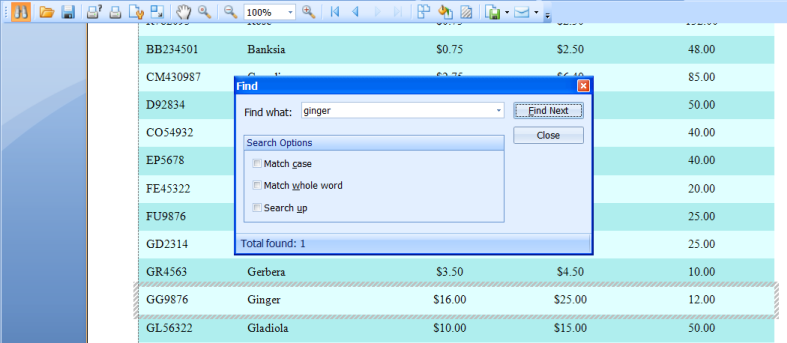
As you can see, when you go into Preview mode a new toolbar appears that provides some great functionality, including the ability to search the report, save the report to a number of formats and even email the report in your desired format.

search1

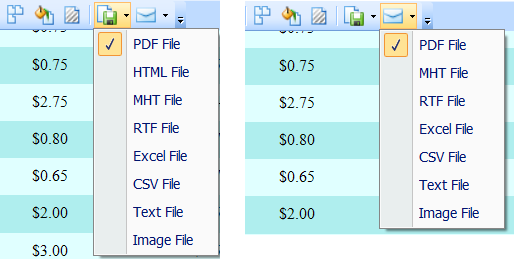
There are some great options for saving the report to disk or for emailing.  The email button invokes the client
machine’s default email program.

export formats

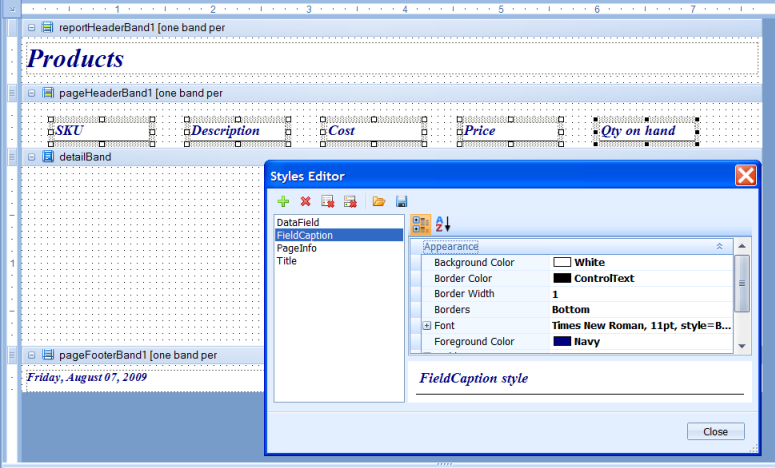
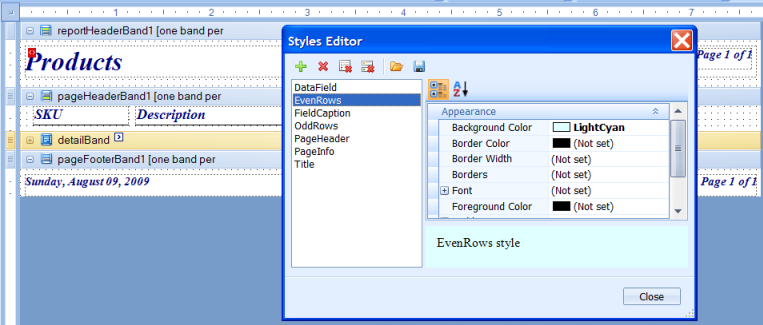
Back into Design mode, one feature I think you’ll love is the support for “Styles”.  Styles let you define background colors, borders, fonts and text alignment which then makes its very easy to quickly set all your fields or static text to a nice uniform look.

styles

Styles can also be applied to Report Bands, for example that’s how I gave this report the the two different shades of blue for the odd and even rows.

styles2

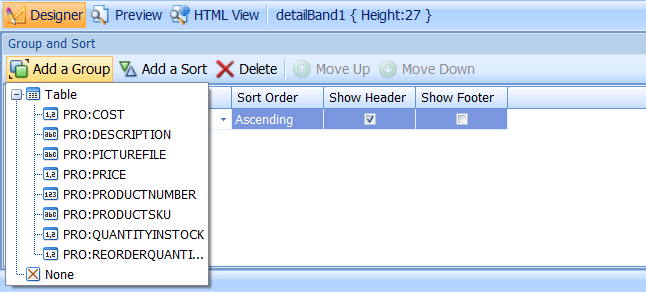
The Group and Sort Pad makes it easy to apply grouping/sorting to any report.  Grouping and Sorting can be done by an end user with just a few mouse clicks.

groupsort

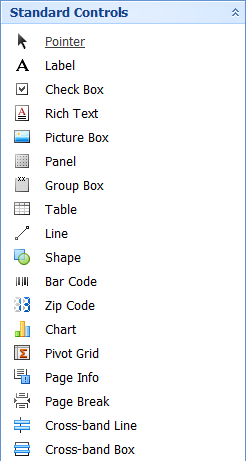
There are 17 controls available to build your report with:

toolbox1

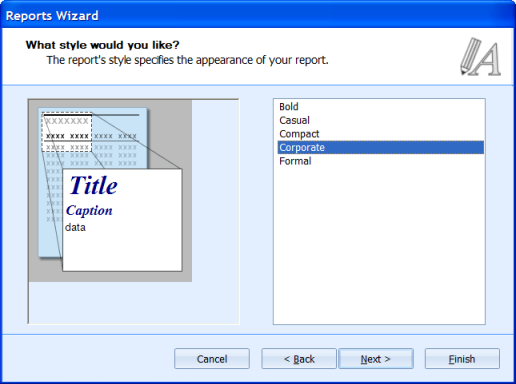
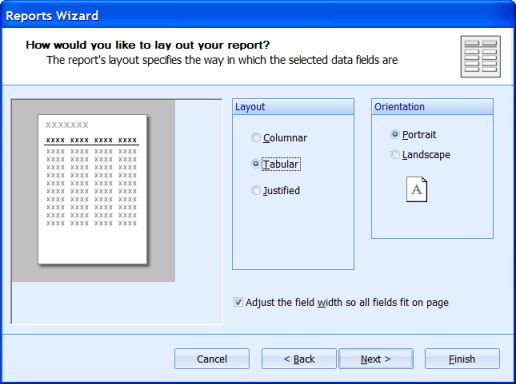
The Report Wizard does a great job of getting you started, it allows you to select both a style (which you can customize), and a layout.

rptstyle2

layout1

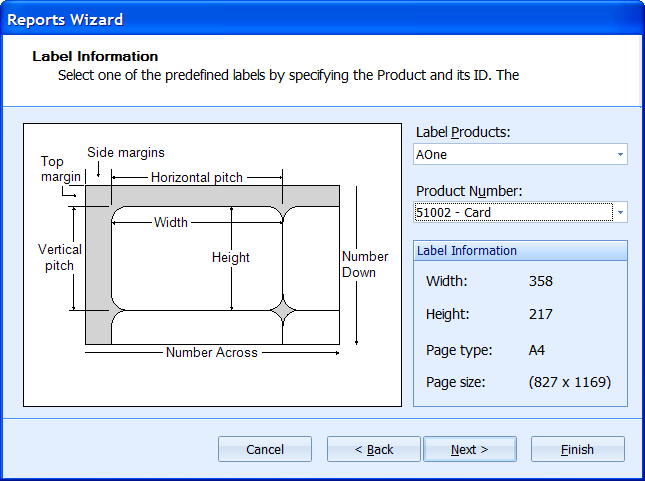
And there is builtin support for creating labels:

labels

Hopefully this post gives you a good idea of what’s coming.  We’re working hard now on TXR conversions, which many Clarion developers have told us is very important to them, and we’re fixing bugs found internally, but it won’t be long before we make a beta version available.

Its worth mentioning that the new Report Writer will be shared by both Clarion 7 (win32) and Clarion.Net, and it includes support for doing advanced scripting using Clarion# at design time.  There is much more functionality, and great features to talk about, and as the documentation progresses we’ll post a detailed spec sheet on the web site.