Clarion projects – Report Engine

Clarion projects – Report Engine

The Clarion Report engine ( the engine in the RTL) has been evolving since it was first implemented in the original Clarion for Windows back in the W95/98 days. Its uses Windows metafiles to generate Reports. Metafiles are created in memory and are written to disk files. The RTL also uses metafiles for direct drawing as in ARC() or PIE() both REPORTs and WINDOWs. A metafile is a simple way to store drawing operations but there are several limitations:

Windows metafiles do not support all GDI functions, for example, images with semi-transparent parts can’t be stored in Windows metafiles. Reports are actually sequences of bands. Bands consist of controls and they can be nested. Multiple drawing operations can be required to draw controls. For example, multiple lines and multiple strings must be drawn for LIST controls. Reports are actually represented internally with a tree structure, and metafiles with their linear organization are not really an adequate way to represent them. The BLANK statement with parameters makes it necessary for the RTL to insert some additional records right in the middle of the metafile. The RTL must also carefully track images, pens and fonts used in metafiles to provide a correct representation of the report, and to avoid leaking of resources.

At the upcoming DevCon in Orlando I’ll be talking about (the details) of how we plan to solve these types of issues, and at the same time bring brand new capabilities to your reports. And as we always strive to do – maintain 100% backward compatibility.

Clarion Projects – Touch support in the RTL

Clarion Projects – Touch support in the RTL

Touch input affects all Windows (all objects with HWND handles), and all controls. A generalized processing of touch gestures and mouse input requires changes in the hierarchy of classes within the RTL that deal with user interactions. By generalized I mean the ACCEPT loop must recognize and handle all possible “gestures”, and then it needs to decode sequences of WM_POINTER* messages to matching gestures and send them back to the your program in a way that makes it easy to respond to. And further, indirectly Touch support affects some areas that are not related to input at all, for example setting and getting properties.

The RTL also needs to expect that touch/pointer messages can be sent to different windows depending upon where the touch is done, and to windows running in different threads as well.  Clarion programs are typically very thread-intensive, unlike the typical MS VC/VB/C# programs which in terms of use of threads, are diametrically the opposite (the UI is almost always single-threaded).

In other words the implementation isn’t a project for a rainy weekend, instead its a complex melding of current code to recognize
user input, with a brand new set of requirements for touch gestures.

A brief description of some of the functionality being worked on:
– scrolling of LIST control
– Zoom in/out
– touch to press button, toggle checkbox, select radio option
– touch to give focus to other controls
– and others that we are still imagining

Force DLLs to be copied to target

Clarion 9 has a new feature: you can now force dlls to be copied to the destination directory of the .Exe using the LibAlwaysCopyList.xml file located in the <appdata>\SoftVelocity\Clarion\9.0 folder.  Normally all required DLLs are copied based on the contents of 2 nodes in your project; the Database drivers node and the ‘Libraries, Objects and Resources’ node.  However, if you change the link mode to do a ‘Lib’ link (as opposed to the default Dll link) then typically you don’t need any DLLs copied.  However if your .lib was created against a non-Clarion DLL, then you need the .Dll for loading at runtime.  This feature allows you to force the .Dll to be copied.

C9 – new example Apps

Be sure to check these 3 new example apps; \examples\SqlScriptor\SqlScriptor.app shows usage of the new SQL scripting class, \examples\SQLite\School.app is the school.app modified to create an SQLite database (and tables) and to read the original .TPS files and copy the data into the SQLite database, and examples\XML\XMLParser – examples\XML\XMLGenerator which show a light-weight XML parser/generator.

C9 – Dictionary Views

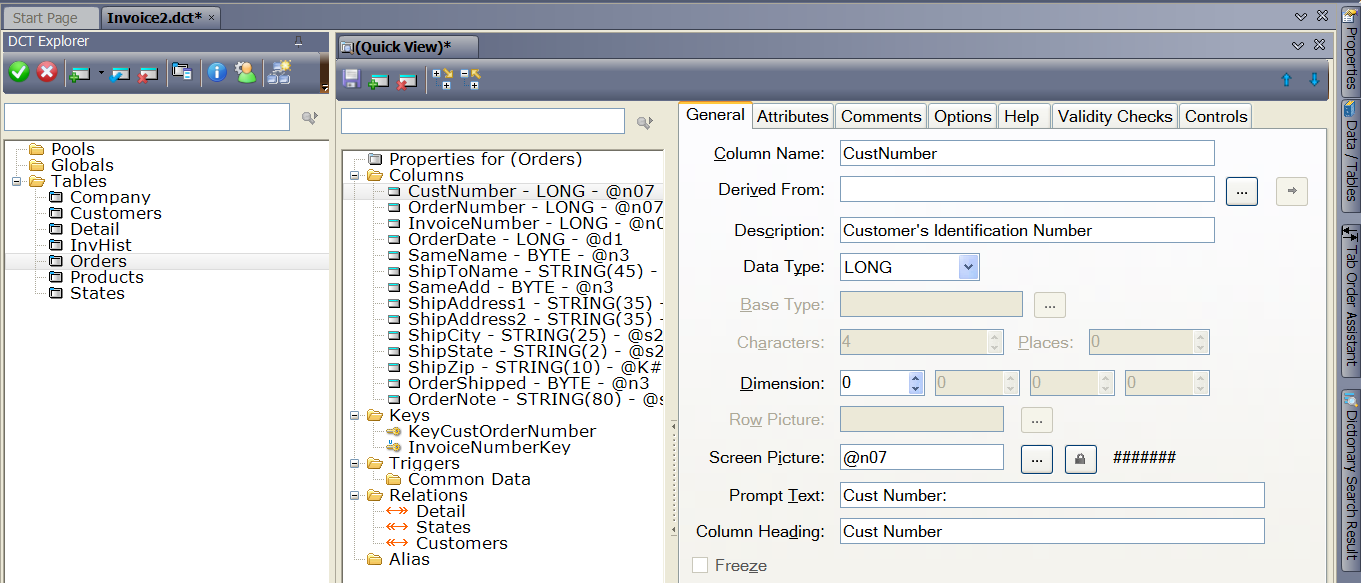
Clarion 9 offers a new “Advanced” view/layout to the Dictionary Editor.  To switch to the Advanced view go to the Main Menu and choose Tools->Options->Clarion->Dictionary Editor Options, at the botton of the General tab change the ‘Quick View Type’ from Simple to “Advanced”.

Switching to the advanced view places all details in one combined view, like this:

DCT-advanced

C9 – Dictionary validation

Dictionary validation; there is a new option available to run a check on your Dictionary to ensure the window and report control strings contain valid definitions. Older versions of Clarion could generate certain controls withn the Dictionary file incorrectly, this new option checks that all the control definitions are valid, and both corrects them and writes the changes it made into a log file.

To run a check on your Dictionary, open the .Dct file, then from the Main Menu choose Tools->”Check Data Dictionary Structures”.  You are prompted to confirm the operation as it can take a bit of time to complete on very large dictionary files.

C9 – FileCallBackInterface extended

You can now stop a file operation in the FileCallBackInterface.FunctionCalled method without an error being reported to the calling code.  This is done by setting Parameters.StopOperation to TRUE.  Using this feature you can, for example, have all CREATE statements execute SQL code instead of the standard code executed by the file drivers (could utilize the new SQLexecutor class and run your CREATE script). If ErrCode is not set, then no error code is returned to the calling code.  FunctionDone will not be called if Params.StopOperation is TRUE.

The ABC FileManager class also has a new Property StopOperation.  Setting this property to TRUE in PreDelete, PreInsert, or PreUpdate will cause the file operation to stop without reporting an error.  Further, the matching PostXXXX method will not be called.  If ErrCode is not set, then no error code is returned to the calling code.  The matching PostXXXX method will not be called. if SELF.StopOperation is TRUE.

C9 – ABC

In the ABC classes/templates there is a new option to allow only one instance of a Procedure to be run . NB: This works when the ‘Call a Procedure’ is used from a Menu or Buttons, and the “START a new thread” is used.

Also added support to the WindowExtenderClass to ensure only one (1) instance of your executable is running.  It checks if the process is already running and if so, it gives focus to the existing running process. And added support to the FrameExtension template to start the application only once (ABC and Clarion)

C9 – Trigger support extended

You can now add Create and Fetch triggers in the dictionary, and in the global embeds of a data app.

The Dictionary Editor Trigger Properties list has been extended to include:

Trigger Type                           ABC Method

  • ——————————————————–
  • Before Record Retrieval            PreFetch
  • After Record Retrieval             PostFetch
  • Before Create                          PreCreate
  • After Create                               PostCreate

The following FileManager Methods have been added:

PreFetch                      PROCEDURE(SIGNED OpCode, KEY key, STRING positionBuffer, LONG pointer, UNSIGNED recLen, *CSTRING ErrCode, *CSTRING ErrMsg),BYTE,VIRTUAL
PostFetch                    PROCEDURE(SIGNED OpCode, KEY key, STRING positionBuffer, LONG pointer, UNSIGNED recLen, *CSTRING ErrCode, *CSTRING ErrMsg),BYTE,VIRTUAL
PreCreate                    PROCEDURE(*CSTRING ErrCode, *CSTRING ErrMsg),BYTE,VIRTUAL
PostCreate                  PROCEDURE(*CSTRING ErrCode, *CSTRING ErrMsg),BYTE,VIRTUAL