Project Options and fixing Errors in Embedded Source

This article reviews the essentials of the project system of Clarion 7, how it interacts with the application generator’s embed points, and the options that you have available to control or change the default behavior of the IDE.

Understanding these options will make you more efficient and productive in the Clarion 7 IDE.

We’ll start with an overview of the project system, discuss the origins of generated source code, and finish with the options available that control how you can edit errors in embeds when needed.

blk2blue4

Controlling Source Generation

Regarding the action of building a program created with a Clarion application file, Clarion 7 is the most flexible IDE in the product’s history.

You can just generate source, generate source and make (build), and generate source, make (build), and then run the compiled program from the IDE.

Make (or Build) refers to the process of compiling and linking source to your output project target (EXE, DLL or LIB)

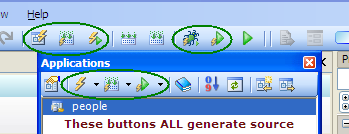
You can perform these actions from the Applications Pad, or from the IDE toolbar:

gbrbuttons1

The highlighted IDE toolbar buttons shown in the above image are only enabled when an Application is opened for editing.

By comparison, the Applications Pad can affects all applications contained in the current Solution. How you process the Generate, Generate and Build, and Generate Build and Run button is controlled from the button drop list options:
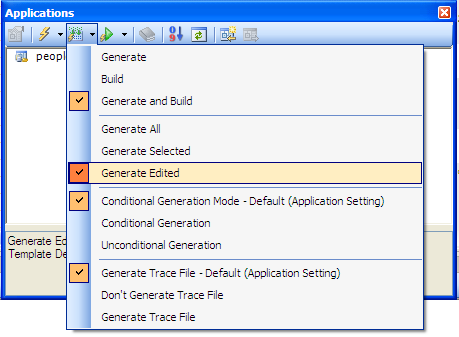
apppadmenu1

Setting the Applications Pad to Generate Edited will perform the same actions as the buttons on the IDE toolbar.

And here is another important tip:

All buttons on the IDE toolbar and Applications Pad that display a “lightning bolt” will always affect the source generation of applications.

The following buttons (Build and Rebuild):

buildrebuild1

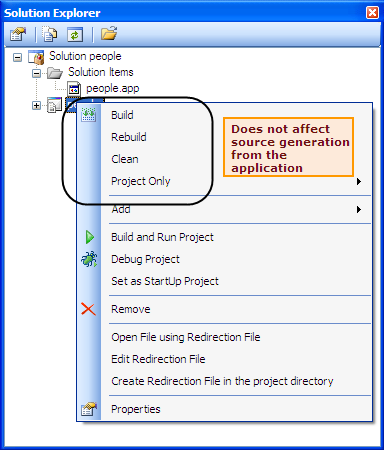
…do NOT cause the source code generation;  these buttons only run a “Build” against the source modules that already exists on disk.

The same fact; “Build does not cause the Application Generator to generate code” applies to all Build options selected from the Solution Explorer:

projectbuilds1

blk2blue5

When bad things happen to good developers – Coding Errors

Let’s face it, stuff happens. The “stuff” that I’m referring to is errors in the source code that are generated from two basic sources of any application.

Code that is generated by the templates
We can break this down a little further. Since templates are read when loading an application, it is possible that something in your dictionary could cause bad code to be generated. Primarily this is from two areas of the dictionary; Triggers and Initial Values. A good tip here is to “mark” your code in the dictionary with a comment, like “DCT generated” or something like that.

You can also cause errors in the generated code by entering incorrect values in template prompts in the Application. Examples of this can be a bad Record Filter expression, incorrect or undefined variable names, etc. In most cases, when a template prompt is looking for data, you will be prompted by one of several selection dialogs (Select a File, Select a Key, Select a Column, etc.)

Code that is generated from embeds
Embeds allow developers to modify or extend the functionality of the base templates by adding additional source code. Clarion provides two views of embeds.

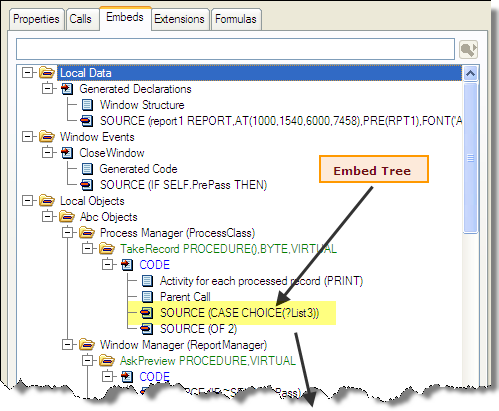
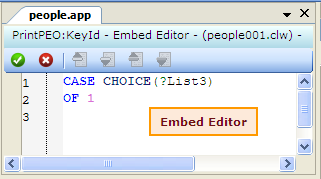
The Embed Editor is located in every procedure’s Embed tab. There is a hierarchical tree of entry points, and by default these embed points open a stand-alone editor that only applies to that selected embed point.
embededitor1

embededitor21

Embeditor (Source Context Editor)
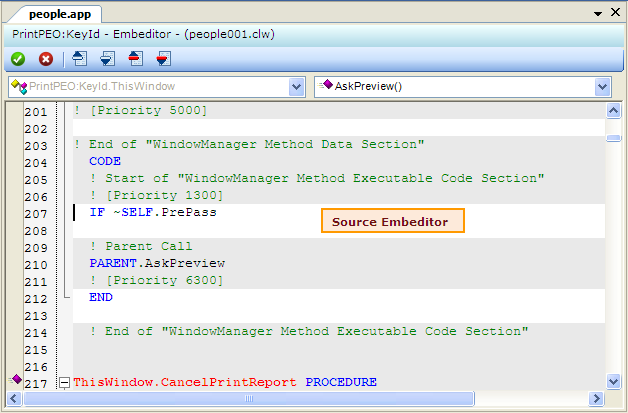
The second view of embeds is the context view. In other words, how does your embed code fit in the context of the template generated code and other embed points? This is also called the Source Embeditor.

You can access the Source Embeditor in several ways:

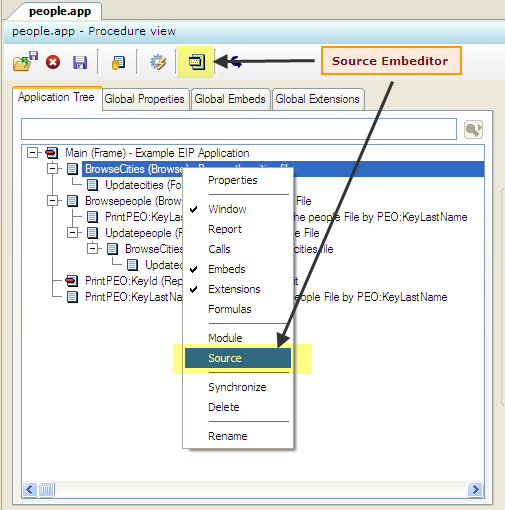
Right-click on any procedure in the Application tree, and select Source from the popup menu, or press the Source Embeditor toolbar button as shown below:
sourceembeditor11

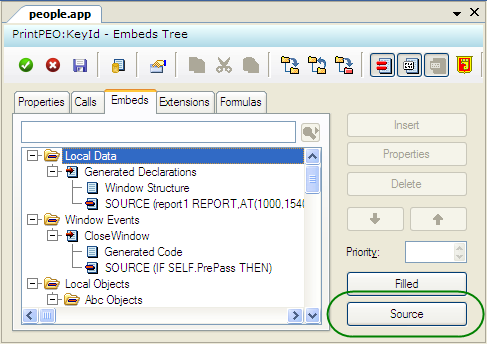
From the Embeds tab:

sourceembeditor21

…and if you’ve never seen it before, here is the Source Embeditor:
sourceembeditor31

blk2blue6

Putting it all Together
With what was just discussed above, let’s now put it all together.

When you press one of the options that generates source from the Application Generator…
sourcegeneration1

…and the compiler detects errors, what source editor will be launched from the Errors Pad?

The options to control what source editor will open is controlled by settings in the Application Options.

To open the Application Options dialog, the application editor must be closed. Find this dialog and open it from the IDE Tools Menu (Tools > Application Options).

There are three settings in the Applications Options that control your editor options.

In the Application tab (the first tab you see when the Application Options is opened), find the following option:

option11

When working in the application editor, this option should always be OFF if you want items from the Errors Pad to open up in your favorite embed editor.

With this option turned ON, ALL errors will always open the generated CLW source file, and if you edit errors and then later regenerate source from the Application Generator, your changes will be lost. Only use this option if you are simply testing or prototyping a coding scenario.

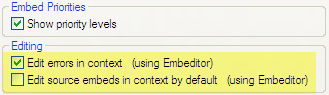
The next two options are found in the Application Options Embed Editor tab:
option21

The Edit errors in context (using Embeditor) option will open the Source Embeditor by default from the Errors Pad when this option is checked. When unchecked, clicking on errors in the Errors Pad will open the Embed Editor by default.

Here is a VERY important point:

The Source Embeditor (or embed editor) will open ONLY if the error in the Errors Pad is caused by an EMBED error.

If the error is caused by bad dictionary information (like triggers or initial values), bad template entries, OR an embed that CAUSES bad GENERATED code (like a misplaced END statement), the error pad will ALWAYS open the CLW instead. So in nearly all cases except for the last one, when clicking on an error results in opening the CLW, you can be certain that the error is caused by an incorrect template setting or an error introduced in the Dictionary.

The last option, Edit source embeds in context by default (Using Embeditor), does not affect how errors are processed, but instead controls what editor to use when opening an embed in the Embed Tree found in the Embeds tab.

Summary
When it comes to handling coding errors in an efficient and productive manner, you need to know your project generation options in the Clarion 7 IDE, and know that errors can occur from two different application sources (templates or embeds), and ONLY errors from embed points will open the embed editor of your choice. The embed editor that you open (Embed Editor or Source Embeditor) is controlled by settings found in the Application Options window.

We recommend that you set the Edit embedded source errors in generated code option to OFF (unchecked) and the Edit errors in context (using Embeditor) to ON (checked). These are the default settings of a newly installed Clarion 7 IDE.

Happy programming!
Template Tips #2

We found that some 3rd party templates that use #EXPORT or some other output are generating text in the middle of the generation of the APP itself. This can be very dangerous as it can “break” the code generation for the current module, leaving the user of that template with a partially generated file, or no file generated at all.

We also found some templates are sometimes using the wrong embeds to call its functionality, and that can create a problem when the template fails for any error.

The side efect of both of these template coding errors are code generation errors in the application generated source. So for templates developers we strongly encourage you to check the embeds you use and the location to ensure you are not generating code that can fail in the middle of the application generation process.

One of the changes needed by some 3rd party templates is the use of the embed:
#AT(%ProgramEnd)

this MUST be changed to:
#AT(%AfterGeneratedApplication)

The %AfterGeneratedApplication embed should be used for any side processing and code generation that is not related to the
main code generation of the APP.

We recommend that if you have a 3rd party tool that does some extra processing with the APP to take a look at the code yourself or send a query to the developer of that tool and ask them to ensure their template is not doing any processing in the wrong embed (#AT(%ProgramEnd).

Clarion.Net updates

We have a new update on its way to you.  This release solidifies the new LinqToFileProvider and has some good general fixes. We’re getting closer with the new App code generator and we will keep you posted on how its progressing.  We’re also getting close to where we’ll open up weekly or bi-weekly internal builds.

Automated Import and Export of Applications and Dictionaries

Clarion 7.1 added the ability to automatically import and export .App and .Dct files to/from their text representations.  This was primarily added for use with version control systems like Subversion, but developers may also find it useful for automated backup purposes.

With this system any time a dictionary or application is saved it is automatically exported to text.  If you load a dictionary or application and the text file has a newer time-stamp then the binary file, then the text file will be loaded into the binary file.  With this system you can then check in and check out the text representation of your files into your version control system, and the IDE will automate updating the binary files.   Further, if you are using Subversion as your version control system you can see the history of your file via the History tab (shown in the image below) appears at the bottom of the DCT Explorer or Application View.

The History tab displays the version history pulled from your SVN repository.

dcthistory

ClarionCl.exe is also auto import/export enabled.  So if you use another new feature of Clarion 7.1 (Enterprise Edition) to generate an application, the .App and .Dct files will be updated if the timestamp of the text file is newer then the binary file.  This allows you to use automated build tools like CruiseControl.NET to build your Clarion applications.

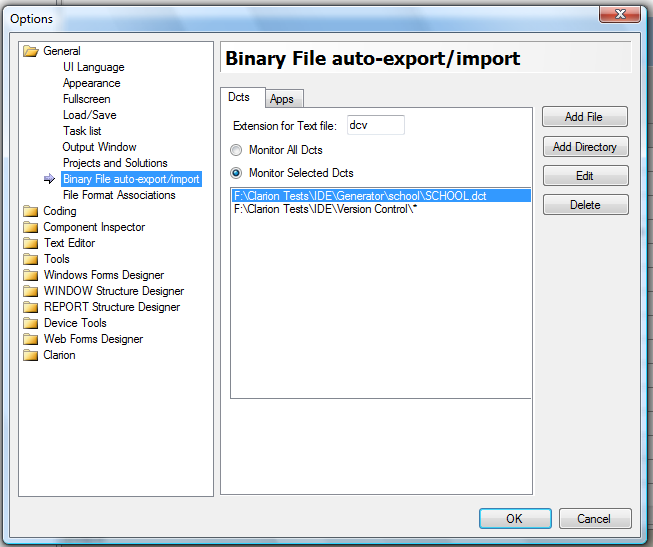
To enable automated import/export of files go to Tools/Options/General/Binary File auto-export/import.  You will then have a screen similar to the image below.

importexportconfig

The import/export automation does its work on a background thread, so you should not see any impact on your normal work flow.

Update for 7.1

A new update for 7.1 is now available.  One often requested feature was added; FEATURE:  You can now set (via Tools/Options/General/Projects and Solutions dialog) if new projects should default to release or debug mode.  Several good bug fixes, including a fix for a regression that popped up in build 6813. You can check the complete change log here.

And look for a new Clarion.Net release on this coming Monday!

Template Writing Tips

This is one of many posts to come with advice and tips about things you should do, and things to avoid, when writing Templates. It is intended to help developers who write templates to validate their templates, and to implement some best practices to ensure the templates they deliver work as expected.

The template language is very strict in its syntax, and blank spaces/lines can have a big impact. Spaces where they are not expected are evil. A blank line in the templates will generate a blank line in the generated code, but where that blank line lands in the generated code depends upon where that blank line is within the template code.

Some areas of a template are not meant to generate code, for example #PROMPTs representing the UI. Some templates, like an Extension template, are not supposed to contain any generated code except within #ATs where the code is inserted into an #EMBED.

If a blank line is found in a template, but in a place that is not correct, like between #PROMPTs, or outside a #AT in an Extension template, the code generator will push that line into the generated code, but because the blank line was in an incorrect location there is no explicit place to insert that blank line, and it will add it at the beginning of the block of generated code. To summarize, blank lines in a template are good, except when they are somewhere they are not supposed to be.

Blank lines intended to make the template code easier to read should be always be replaced with #! in column 1 (or just removed). There isn’t a blank line “statement” in the template language, and the reason for that is so that you don’t not mix template language code, with generated output text. Using something like #!———- is much better than a blank line, better in that it is safer and it is more visual.

Some places where a blank line should not be placed:

In any template between a #PROMPT or any other UI code (#SHEET,#TAB,etc.).
In #EXTENSION templates any blank line outside an #AT/#ENDAT block is incorrect.
In a #UTILITY template any blank line outside the scope of an #OPEN or #CREATE is incorrect.
In any template, any blank line used as a separator between #DECLARE statements or as a separator between any other statement is incorrect.

As a golden rule, if the blank line is not intended to be output to the generated code, then the blank line should be replaced by a #! in column 1, or just removed.

Update for 7.1

Latest update for 7.1 has just been made available. This build works around a problem Clarion developers found on Windows 7 when the Alt Key was pressed. The problem reported was an apparent conflict with Windows 7 “Live Mail” or Outlook 2007. Both of these apps default to hiding the main menu and activating it upon pressing the Alt Key. The problem wasn’t unique to Clarion 7, the same conflict happens under Windows 7 with version 6 Clarion apps (and most likely prior versions too). We are testing a backport of the workaround for C6.3.x.

In the prior release we implemented code completion within the regular Embed Editor. In this release we have optimized the process so when working within the Embed Editor code generation of the procedure only occurs when something has changed that requires it, and the generated code is reused in the same edit session if possible.

We also tweaked a few things to make working with App based solutions and various version control systems a lot smoother. These changes mainly deal with detecting read-only files (Apps and Projects), and then shifting into a mode such that no merging occurs from the App generation process. Speaking of version control, we introduced a nice feature several builds ago; “Binary File auto-export/import”. What’s that? Well if you open Tools-Options-General you’ll see a node aptly named “Binary File auto-export/import”. On that tab you can specify individual Apps and DCTs (or entire folders if you have multiple Apps or DCTs), and whenever you are working with the named Apps or DCTs, an automatic export/import to TXA or DCTX format is executed in the background. This means when you open the App (or DCT) for editing the system looks for the TXA or DCTX format file and automatically imports it, and when you save the App or DCT the system exports your latest changes. Pretty slick and very useful.

The other notable change in this release is a change in how deleted controls affect embedded code attached to those controls. In this release whether you delete a control from within the Designer, or even from within the text editor when working with the window or report structure as text, any attached embed code will become orphaned (leaving it up to you to delete or preserve).

There are also several other changes and fixes, to see the entire change log click here

LastChanceHook

Geoff Thomson from Capesoft asked me about an example on how to override the RTL’s internal exception handler.   I think this is a topic that is likely of interest to many Clarion developers and warrants an example, so here we go.

Overview

PROP:LastChanceHook is a write-only SYSTEM property, which allows you to specify your own function that will be invoked if an exception occurs. The hook function allows you to display information about the exception and choose one of the following actions:

  • Continue execution of the thread where the exception occurred (unless the exception is fatal)
  • Stop the thread (or the entire process if the exception occurred in the main process thread) without invoking the RTL’s internal exception handler
  • Invoke the RTL’s internal exception handler

    This allows you to catch an exception, and if it is non-fatal you can allow your end users to continue executing your program even when an exception has occurred in one of its threads.


    How It Works

    Your function, which you assign to the SYSTEM{PROP:LastChanceHook} property has to have a prototype of:

    HookProc (*ICWExceptionInfo),LONG

    The ICWExceptionInfo parameter is an interface declared in CWEXCPT.INT which you’ll find in your .Libsrc folder.

    The result returned by the hooked function is evaluated as follows:

    • If the result is equal to Zero, the RTL executes its own internal exception handler dialog to show information about the exception and subsequently perform the action chosen by the end user.
    • If a Positive number is returned, the RTL stops the thread (or the entire process if the exception occurred in the main process thread) without invoking the RTL exception handler.
    • If a Negative number is returned, the program will try to continue from the point of the exception. Note, if the exception is non-continuable, this result is ignored and treated as equal to Zero.

    So in our example we start with this code:


    PROGRAM

    INCLUDE(‘CWEXCPT.INT’),ONCE

    MAP
    Test (LONG,LONG)
    Hook (*ICWExceptionInfo),LONG
    HEX (LONG),STRING,PRIVATE
    MODULE(”)
    MessageBox (UNSIGNED, CONST *CSTRING, CONST *CSTRING, UNSIGNED),SIGNED,PROC,PASCAL,NAME(‘MessageBoxA’)
    END

    END

    MB_ICONHAND EQUATE(00000010h)

    CODE
    SYSTEM{PROP:LastChanceHook} = ADDRESS (Hook)
    Test (10, 0)  ! causes an exception
    RETURN

    In this example the Procedure named “Hook” is assigned as our exception handler. That’s the only Procedure we are concerned with, the others are just there to help make the example work by 1) causing an exception and 2) informing the user about the exception. Next we have:


    ! ------------------------------------------------------------------------------

    Hook PROCEDURE (*ICWExceptionInfo info)

    S CSTRING(1024)
    Caption CSTRING(256)

    CODE
    IF info &= NULL
    RETURN 0
    END

    Caption = ‘Exception ‘ & HEX (info.ExceptionCode()) & ‘ at ‘ & HEX (info.ExceptionAddress())
    S = ‘Registers’ & |
    ‘<13,10>EAX=’ & HEX (info.Register (i386_Register:Reg32_EAX)) & |
    ‘ EBX=’ & HEX (info.Register (i386_Register:Reg32_EBX)) & |
    ‘ ECX=’ & HEX (info.Register (i386_Register:Reg32_ECX)) & |
    ‘ EDX=’ & HEX (info.Register (i386_Register:Reg32_EDX)) & |
    ‘<13,10>ESI=’ & HEX (info.Register (i386_Register:Reg32_ESI)) & |
    ‘ EDI=’ & HEX (info.Register (i386_Register:Reg32_EDI)) & |
    ‘ ESP=’ & HEX (info.Register (i386_Register:Reg32_ESP)) & |
    ‘ EBP=’ & HEX (info.Register (i386_Register:Reg32_EBP)) & |
    ‘<13,10,13,10>Current thread is being terminated’

    MessageBox (0, S, Caption, MB_ICONHAND)
    RETURN 1      ! a positive value signals the RTL to kill the thread

    ! ——————————————————————————

    Test PROCEDURE (LONG a, LONG b)

    CODE
    a %= b

    ! ——————————————————————————

    HEX PROCEDURE (LONG A)

    i UNSIGNED,AUTO
    S STRING(8),AUTO
    DIGITS STRING(‘0123456789ABCDEF’),STATIC

    CODE
    i = SIZE(S)

    LOOP WHILE i <> 0
    S [i] = DIGITS [BAND (A, 0Fh) + 1]
    A = BSHIFT (A, -4)
    i -= 1
    END

    RETURN S

    ! ——————————————————————————


    These first two lines of code assign our exception handler function and then call the Test procedure that raises an exception:

    SYSTEM{PROP:LastChanceHook} = ADDRESS (Hook)
    Test (10, 0)  ! causes an exception

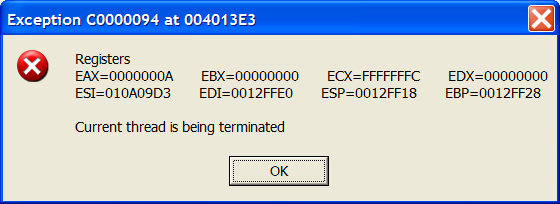
    The exception is trapped and we show the result in a MessageBox which looks like this:

    customexception

    our Hook PROCEDURE (*ICWExceptionInfo info) uses the methods in the interface to show the exception code, its address, and the values of the registers at the time of the exception. And remember we said that:

    “If a Positive number is returned, the RTL stops the thread (or the entire process if the exception occurred in the main process thread) without invoking the RTL exception handler.”

    in our example our Hook PROCEDURE does a “RETURN 1” and since we are running on the main thread then immediately after the MessageBox is displayed and the user presses the OK button the program itself is terminated.

    In a future article we’ll show you how to easily display the callstack so that your end-user can tell you exactly which procedure caused the exception. And we’ll be adding an option to the templates so that you can do the same with a couple of mouse clicks. You can download the source code for this example from this link

    Update for Clarion 7.1

    Emails are going out with download instructions for the latest update to 7.1 (build 6755). There are lots of good fixes and changes, and I already blogged on the significant new feature of Code Completion in the Embed editor. The only other new feature is the addition of the “Properties toolbar’ in the Report Designer. To activate it go to Tools-Options-Report Structure Designer and turn on the ‘Show Properties Toolbar’ option. To see the entire change log click here

    Code Completion in the Embed Editor

    There was much gnashing of teeth over the fact that the plain Embed Editor didn’t implement Code Completion – well now the next 7.1.x update implements Code Completion in the Embed Editor. We are also looking at adding the support for Code Folding, which as of today isn’t supported in the Embed Editor, and Clarion devs have asked that we also provide code folding for Control Statements such as IF, CASE, LOOP, etc. and we’re looking into this too.

    In case you haven’t found this yet, you can define your own “folding regions” anywhere you like with this syntax:

    !region SomeDescriptiveText
    …….source code
    !endregion

    Check the Help file index for this topic: “Regions – Source Code” or just give it a try with the above syntax.